
Ever stared at your Downloads folder and felt that sinking feeling? It’s 2026, and your Mac is buried under a chaotic pile of screenshots, random PDFs, untitled notes, and mystery files from last month’s project. What if I told you there’s a way to hand off that mess to an AI colleague who actually gets it done—without you micromanaging every step? That’s exactly what how to use Claude Cowork on macOS for file organization 2026 is all about.
Launched in early 2026 by Anthropic as a research preview, Claude Cowork brings agentic AI power (the same tech that made Claude Code a hit with developers) to everyday knowledge workers. It’s built right into the Claude macOS desktop app, and for Claude Max subscribers, it lets Claude access a specific folder, read its contents, rename files intelligently, sort them into subfolders, create spreadsheets from images, or even draft reports from scattered notes. Think of it like having a super-smart virtual assistant who works while you grab coffee.
In this comprehensive guide, we’ll walk through how to use Claude Cowork on macOS for file organization 2026 step by step. Whether you’re a busy professional drowning in documents or just someone tired of digital clutter, you’ll learn how to reclaim your Mac’s filesystem with minimal effort. Let’s dive in.
What Is Claude Cowork and Why It Matters in 2026
Claude Cowork isn’t just another chat feature—it’s Anthropic’s push toward true AI agents for non-technical work. Building on the massive popularity of Claude Code (where users repurposed coding tools for general tasks), Cowork simplifies the process. You grant access to a folder, describe what you want, and Claude plans and executes multi-step actions autonomously, keeping you in the loop with updates.
Why is this revolutionary for file organization in 2026? Traditional tools like Finder tags or third-party apps require manual setup and ongoing maintenance. Claude Cowork understands context—file contents, images, patterns—and acts like a thoughtful coworker. It can rename “IMG_4567.jpg” to “Q4_Expense_Receipt_ClientX.jpg” based on OCR analysis of the image. Or turn a folder of receipt photos into a tidy expense spreadsheet. The result? Less chaos, more focus on actual work.
As of January 2026, Cowork remains exclusive to Claude Max subscribers (the high-tier plan for power users), but it’s evolving fast with user feedback.
Getting Started: Prerequisites for Using Claude Cowork on macOS
Before jumping into how to use Claude Cowork on macOS for file organization 2026, make sure you’re set up properly.
- Subscribe to Claude Max
Head to claude.ai and upgrade to the Max plan (pricing varies by usage, typically $100–$200/month). This unlocks the research preview. - Download and Update the Claude macOS App
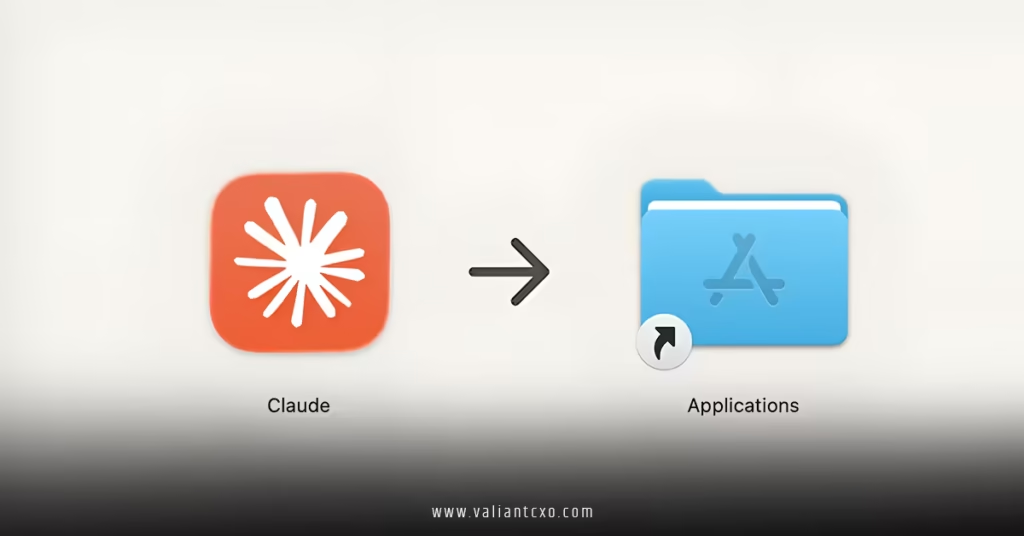
Visit the official download page at claude.ai/download and grab the latest version. The app integrates deeply with macOS, including quick access and file drag-and-drop. - Enable Necessary Permissions
On first launch, grant screen recording (for screenshots), accessibility, and file access when prompted. Cowork needs these to interact safely with your folders. - Understand the Risks
Anthropic is upfront: Claude can perform destructive actions (like deleting files) if instructions are unclear or if there’s a prompt injection risk. Always start with non-critical folders and provide crystal-clear guidance.
With these basics covered, you’re ready to transform your file chaos.
Step-by-Step Guide: How to Use Claude Cowork on macOS for File Organization 2026
Here’s the practical walkthrough for how to use Claude Cowork on macOS for file organization 2026.
Step 1: Launch Cowork Mode in the App
Open the Claude macOS app. In the sidebar, you’ll see the new “Cowork” tab (next to regular Chat). Click it to switch modes—this is where the agentic magic happens. The interface feels familiar but more task-oriented: describe your goal, review Claude’s plan, and let it run.
Step 2: Grant Folder Access Safely
Cowork works by sandboxing to a specific folder you choose.
- Click to select or create a folder (e.g., ~/Documents/ClutteredDownloads).
- Claude can only read, edit, or create files inside this designated area—no peeking elsewhere on your Mac.
- For extra safety, start with a test folder containing copies of files.
Pro tip: Use a dedicated “Cowork Workspace” folder on your Desktop. This keeps things contained.
Step 3: Describe Your File Organization Task
Now the fun part. Type a natural-language instruction like:
“Organize this entire folder by content type. Create subfolders for Images, PDFs, Spreadsheets, and Notes. Rename files descriptively based on their contents—for example, rename receipt screenshots with dates and vendor names. Sort everything intelligently and delete duplicates if you’re confident.”
Claude will think aloud: It analyzes files, proposes a plan (e.g., “First, scan for images using content recognition…”), and asks for confirmation before major actions.
Step 4: Monitor Progress and Intervene
Watch the live updates—Claude shows what it’s doing step by step.
- Need to pause? Just say “Stop” or “Revise plan.”
- Want tweaks? Message mid-task: “Also move all files older than 6 months to an Archive subfolder.”
This conversational oversight makes how to use Claude Cowork on macOS for file organization 2026 feel collaborative, not scary.
Step 5: Review Results and Iterate
Once done, browse the folder. You’ll often find:
- Clean structure
- Meaningful names (e.g., “Invoice_Amazon_2025-12-15.pdf”)
- New files like summaries or CSVs
Not perfect? Tell Claude: “Great job, but group all project-related files from 2025 into a ‘2025 Projects’ folder.” It picks up right where it left off.
Advanced Tips for Mastering File Organization with Claude Cowork
Want to level up how to use Claude Cowork on macOS for file organization 2026?
- Combine with Skills — Cowork loads built-in skills for document creation. Ask it to generate a report from organized notes.
- Browser Integration — Pair with Claude in Chrome for web-based tasks (e.g., “Download invoices from email and organize here”).
- Handle Images & Receipts — Upload screenshot piles: “Extract expense data from these images into a new Excel file.” Claude uses vision capabilities.
- Best Prompts — Be specific: Include examples, rules (e.g., “Never delete without asking”), and priorities.
- Backup First — Always duplicate important folders—better safe than sorry.
For more on AI productivity, check out Anthropic’s official Claude page or The Verge’s coverage of AI agents.
Common Challenges and How to Overcome Them
Even in 2026, agentic AI isn’t flawless. Claude might misinterpret vague instructions (e.g., confusing similar files). Solution? Iterate with feedback. Prompt injection risks exist, so avoid sensitive data in folders.
If something goes wrong, Anthropic’s support and community forums are excellent resources.
Conclusion: Transform Your Mac Workflow Today
In 2026, how to use Claude Cowork on macOS for file organization 2026 represents a massive leap toward effortless digital decluttering. By granting controlled access to a folder, describing your desired outcome, and letting Claude handle the heavy lifting, you save hours of manual sorting. The key takeaways? Start small, be explicit in prompts, monitor progress, and always back up. Once you experience a perfectly organized Downloads folder created by AI, there’s no going back—you’ll wonder how you ever lived without it.
Ready to reclaim your Mac? Update your Claude app, subscribe to Max, and give Cowork a try. Your future self (with a tidy filesystem) will thank you!
FAQs
1. What is the main requirement for how to use Claude Cowork on macOS for file organization 2026?
You need a Claude Max subscription and the latest macOS desktop app. Cowork is a research preview feature available only in this setup.
2. Is it safe to let Claude access my files when learning how to use Claude Cowork on macOS for file organization 2026?
Yes, with precautions—Claude is sandboxed to one folder you choose, asks before destructive actions, and Anthropic emphasizes clear instructions to minimize risks.
3. Can Claude Cowork handle image-based files in how to use Claude Cowork on macOS for file organization 2026?
Absolutely! It excels at extracting data from screenshots (like receipts) to create spreadsheets or rename files based on visual content.
4. Does how to use Claude Cowork on macOS for file organization 2026 work with external tools?
Yes, pair it with connectors like Google Workspace or Claude in Chrome for broader tasks involving web downloads or cloud files.
5. How much does it cost to start how to use Claude Cowork on macOS for file organization 2026?
It requires the Claude Max plan (around $100–$200/month depending on usage), as the feature is exclusive to this tier in 2026.