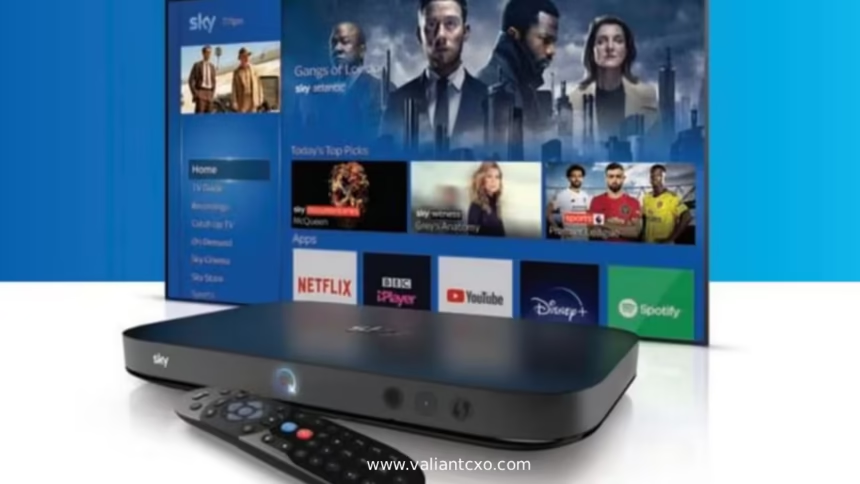
TV Box Troubleshooting Guide TV box acting up? Channels freezing, apps crashing, or the screen going blank at the worst possible moment?
You’re not alone—and you don’t need a degree in networking to sort it out.
This TV box troubleshooting guide walks through the exact checks and fixes that actually move the needle, whether you’re dealing with random glitches, no signal, laggy menus, or Virgin TV box channels jumping and freezing–style issues.
Quick Fix Snapshot (read this first)
Before going deep, try these five essentials:
- Power cycle everything – Fully unplug the TV box and router/modem for 60 seconds, then plug them back in (router first, then box).
- Check connections – Make sure power, HDMI, and coax/ethernet cables are firmly seated and undamaged.
- Test multiple inputs – Try different channels, a streaming app, and a recorded show to locate the problem.
- Improve ventilation – Move the box out of enclosed cabinets and give it space to breathe.
- Note patterns – Does it only happen at night? On HD channels? In one app? That pattern is your roadmap.
If that already sounds like what you’ve tried, keep going—this guide is structured to help you pinpoint the exact layer that’s failing.
How a TV Box Actually Works (Why That Matters for Troubleshooting)
A modern TV box isn’t “just a box.” Think of it as three systems working together:
- Signal layer – Cable/satellite/IPTV feed coming into your home.
- Device layer – The box hardware and its software/firmware.
- Network layer – Your home internet and Wi‑Fi for apps and IP-based TV services.
When something fails, it’s almost always one of these three, or an overlap between them. The trick is not to guess, but to isolate.
Step 1: Identify the Type of Problem
Start by asking one simple question:
What exactly goes wrong on screen?
Common symptoms:
- Picture freezes, jumps, or pixelates
- “No signal” or blank screen
- Audio out of sync
- Apps buffering or crashing
- Remote response lag and slow menus
- Recordings stuttering or refusing to play
The more specific you are here, the faster you’ll find the root cause. For example, Virgin TV box channels jumping and freezing is very different from “only Netflix buffers” or “box doesn’t power on at all.”
Step 2: Basic Power & Connection Checks
This is the boring part. It also fixes a huge chunk of problems.
2.1 Do a proper reboot (not just standby)
- Turn your TV box off using the remote.
- Unplug the TV box from power.
- If your TV service relies on your home internet, unplug the modem and router too.
- Wait at least 60 seconds.
- Plug the modem in first, then router (if separate), and wait for all lights to stabilize.
- Plug the TV box back in and wait for a full boot.
- Test live TV, recordings, and at least one streaming app.
Rebooting clears temporary glitches, failed updates, and weird memory issues. Treat it like a hard reset for the system.
2.2 Confirm cable and port connections
Check:
- Power cable – firmly inserted on both ends.
- HDMI cable – pushed all the way into TV and box; try a different HDMI port on the TV.
- Coax/Ethernet (if applicable) – hand‑tighten coax connectors; ensure Ethernet clicks into place.
- Input source – make sure your TV is set to the correct HDMI input.
If you see any frayed, bent, or suspiciously cheap cables, swap them out as a quick test.
Step 3: Diagnose by Content Type
Next, figure out where the failure actually lives: signal, device, or network.
3.1 If live TV is the problem
Symptoms:
- Frequent freezing, jumping, or pixelation on broadcast channels.
- Certain channels consistently worse than others.
- On‑screen error codes tied to signal or channel availability.
Likely causes:
- Weak or noisy signal from your provider.
- Loose or split coax cables.
- Local line issue outside your home.
This is the same family of problem as Virgin TV box channels jumping and freezing, where the live feed itself isn’t clean.
What to do:
- Tighten all coax connections (wall to box, any splitters).
- Temporarily bypass splitters where possible and connect directly.
- Test several SD and HD channels to see if the pattern is broad or channel‑specific.
- Note channel numbers, times, and how often it happens.
If issues persist after a clean reboot and cable check, you’re looking at a likely signal or line issue that only your provider can fully diagnose.
3.2 If recordings are glitchy but live TV is fine
Symptoms:
- Recorded shows freeze, skip, or crash, but live TV is smooth.
- Some recordings are fine, others unwatchable.
- Recordings cut off early or don’t start.
Likely causes:
- Corrupted recordings due to signal drops at the time of recording.
- Storage almost full.
- Internal drive starting to fail.
What to do:
- Test older vs more recent recordings.
- Delete a batch of old or unwatched content to free up space.
- Restart the box after cleaning up storage.
- Schedule a short test recording and see if it plays smoothly.
If new recordings keep failing, you’re likely dealing with either a persistent signal problem or failing storage hardware.
3.3 If streaming apps are the only issue
Symptoms:
- Netflix, Prime, Disney+, etc. buffer or drop quality.
- Live TV is fine, but apps are slow and crashy.
- Other devices in the house also struggle with streaming.
Likely causes:
- Wi‑Fi congestion or poor signal to the TV box.
- Internet slowdown or outages.
- Router too old or badly placed.
What to do:
- Run a speed test on another device near the TV.
- Reboot the modem and router.
- If possible, use a wired Ethernet connection to the box.
- Move the router to a central, elevated position away from thick walls and appliances.
- Limit large downloads or uploads during heavy streaming.
The Federal Communications Commission (FCC) highlights that latency and packet loss—not just speed—affect video quality. So even “fast” plans can feel slow if the connection is unstable.
3.4 If the whole box is slow or crashing
Symptoms:
- Menus lag or freeze.
- Remote presses take several seconds to register.
- Box reboots itself or locks up frequently.
Likely causes:
- Overheating.
- Software/firmware bugs.
- Too many apps or processes overwhelming the device.
What to do:
- Ensure the box has open airflow on all sides.
- Move it out of closed cabinets or away from other heat sources.
- Perform a full reboot again.
- Check for software or firmware updates in the settings menu.
- Close or uninstall unnecessary apps if your box allows it.
If nothing improves, you may be bumping into a hardware limit or a deeper software bug that requires provider support or a device replacement.
Quick Reference: TV Box Problems & Fixes
Here’s a simple map you can use while troubleshooting:
| Problem Type | What It Looks Like | Likely Cause | First Fix to Try |
|---|---|---|---|
| Live TV freezing/jumping | Pauses, skips, pixelation on channels | Signal/coax/line issues | Check coax, reboot, test multiple channels |
| Recordings stuttering | Only recorded shows glitch | Storage or record-time signal issue | Delete old content, reboot, test new recording |
| Streaming apps buffering | Only apps struggle; live TV ok | Wi‑Fi/internet issues | Speed test, reboot router, try wired connection |
| Menus slow and unresponsive | Laggy UI, delayed remote presses | Overheating or software bloat | Improve ventilation, restart, check updates |
| “No signal” on TV screen | Black/blue screen, TV input message | HDMI/input issue or powered off box | Check HDMI cable and input, reboot box & TV |
| Random reboots or total lockups | Box restarts itself, hangs hard | Overheating or hardware fault | Ventilation, full reboot, then contact support |
Step 4: Environment & Placement Optimisation
A shockingly common villain? Where you physically put the box.
4.1 Ventilation
- Keep a few inches of clearance around the box.
- Don’t stack heavy game consoles or amps directly on top.
- Avoid closed cabinets without airflow; heat builds up fast.
Overheating can mimic all sorts of “mystery” problems—freezing, crashes, and Virgin TV box channels jumping and freezing–type stutters.
4.2 Power & surge protection
- Use a reliable power strip or surge protector.
- Avoid overloaded strips with multiple high‑draw devices.
- If you notice flickering lights or random power cuts, get your electrical situation checked.
Unstable power can corrupt data, crash boxes, and cause long‑term hardware damage.
Step 5: Software, Updates & Resets
Your TV box runs an operating system, apps, and background services. When they get out of sync, weirdness follows.
5.1 Check for updates
In your settings or system menu:
- Look for System, About, or Software Update.
- Apply any pending updates and allow the box to restart.
- After updates, give it a couple of minutes to settle before stress-testing.
5.2 Clear cache or apps (if supported)
Some smart TV boxes let you:
- Clear app caches.
- Force‑stop misbehaving apps.
- Uninstall unused apps.
Focus on:
- Clearing heavy streaming apps that crash frequently.
- Removing apps you never use to free system resources.
5.3 Factory reset (last resort)
If all else fails and your provider or manufacturer suggests it:
- Backup or note any settings and login details you care about.
- Perform a factory reset from the system menu.
- Re‑set up your apps and logins.
Only go here when you’ve exhausted more targeted options, as it wipes your personalized setup.
Step 6: When to Call Support (and How to Get Past the Script Faster)
There’s a point where DIY should stop. Hardware and line-level diagnostics require tools and access you simply don’t have.
Clear signs you should escalate
- Live TV freezes several times per hour across multiple channels.
- New recordings are consistently corrupted or unwatchable.
- Box overheats or power-cycles on its own.
- “No signal” persists despite verified cables and inputs.
- You experience recurring Virgin TV box channels jumping and freezing–type issues after proper reboots and checks.
How to prep for the call or chat
Write down:
- Exact symptoms (e.g., “live HD channels freeze every 3–5 minutes” vs “it’s broken”).
- When it happens (time of day, days of week).
- What you’ve already tried: reboots, cable checks, testing other devices.
- Any error codes or on‑screen messages.
Support agents respond very differently when you sound like someone who’s already done structured troubleshooting. You skip half the script and get to meaningful tests—signal measurements, device swap, or technician booking—faster.
Common Mistakes to Avoid
These are the time‑wasters that stall progress.
- Only toggling standby instead of a full power pull – You need that full 60‑second unplug.
- Blaming Wi‑Fi for everything – If live TV glitches but apps are fine, it’s not Wi‑Fi.
- Ignoring the pattern – “It’s random” is rarely true; it usually clusters around certain channels, times, or apps.
- Keeping the box in a closed, hot cabinet – That’s a slow‑motion stress test.
- Calling support too early or too vague – Do the basic steps first so you have a clear story.
Think of troubleshooting like following a trail, not whacking moles. Each step should narrow the scope, not just reset the problem temporarily.
How This Guide Works With Specific Issues (Like Freezing Channels)
If you’re dealing with Virgin TV box channels jumping and freezing, this TV box troubleshooting guide gives you the framework:
- Separate live TV signal issues from app/network issues.
- Rule out obvious local problems—cables, ventilation, basic reboots.
- Use patterns (time of day, specific channels, only recordings vs live) to pinpoint where to focus.
- Escalate to your provider with a precise description so they can test lines, replace hardware, or adjust signal levels.
The goal isn’t just to make the problem go away once. It’s to understand what caused it so you’re not repeating the same fire drill every weekend.
Key Takeaways
- A TV box sits at the intersection of signal, hardware, and network, and your job is to figure out which side is failing.
- Always start with a proper power cycle and physical connection check—they fix a surprising number of issues.
- Use content type testing (live TV vs recordings vs apps) to isolate the source of problems.
- Overheating, storage limits, and outdated software can cause freezing, lag, and channel jumping.
- Persistent live TV glitches resemble Virgin TV box channels jumping and freezing and often point to signal or line issues that only your provider can fully resolve.
- The more specific your notes and patterns, the faster support can move beyond scripts and into real diagnostics.
- Treat troubleshooting as a repeatable process, not a panic button, and you’ll solve issues faster with less frustration.
FAQs
Why does my TV box freeze more in the evening?
Evening is peak usage time, which can stress both your provider’s network and your home Wi‑Fi. If you see more freezing or Virgin TV box channels jumping and freezing–type behavior at night, you could be running into congestion or marginal signal quality that only shows up under heavier load.
Do I need to replace my HDMI cable if the picture keeps freezing?
A failing HDMI cable can cause dropouts, flickers, or no picture at all, but it’s less likely to cause true content skipping or jumping across channels. Still, swapping in a known‑good HDMI cable is a cheap, easy test to rule out display‑side issues while you focus on signal and box performance.
How often should I reboot my TV box and router?
There’s no hard rule, but many users find that a full reboot of the TV box and router every few weeks keeps things smoother. If you’re running into recurring freezing, stuttering, or Virgin TV box channels jumping and freezing problems, a fresh reboot should always be your first step before deeper troubleshooting or calling support.