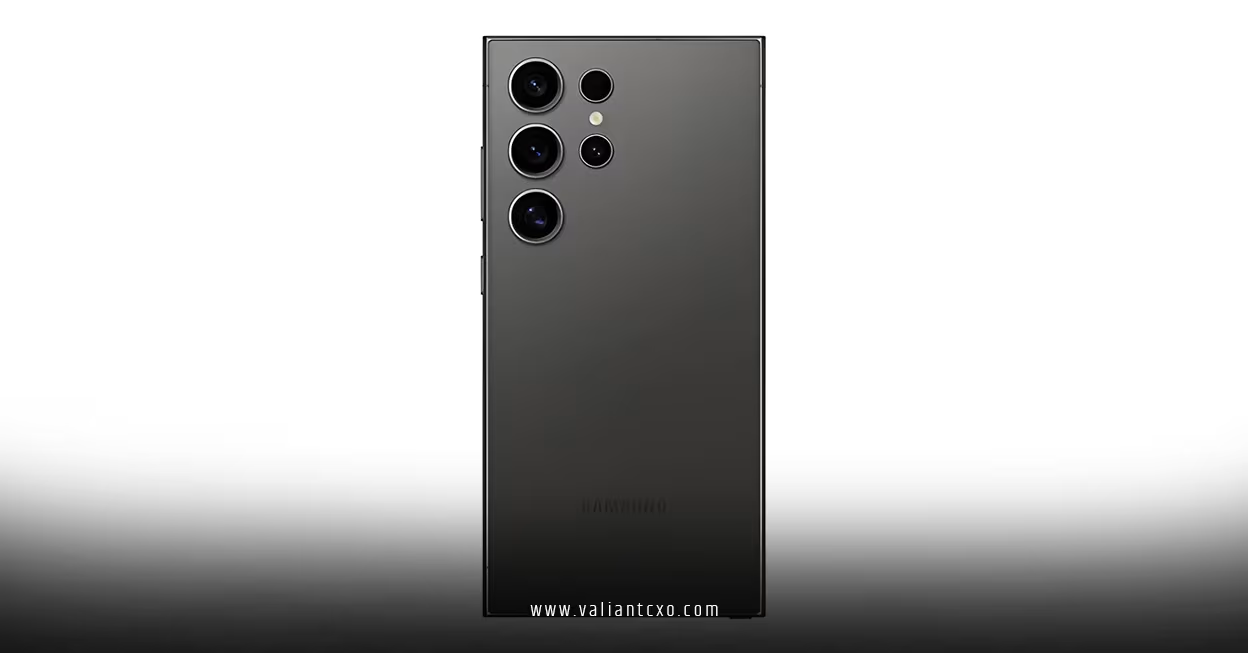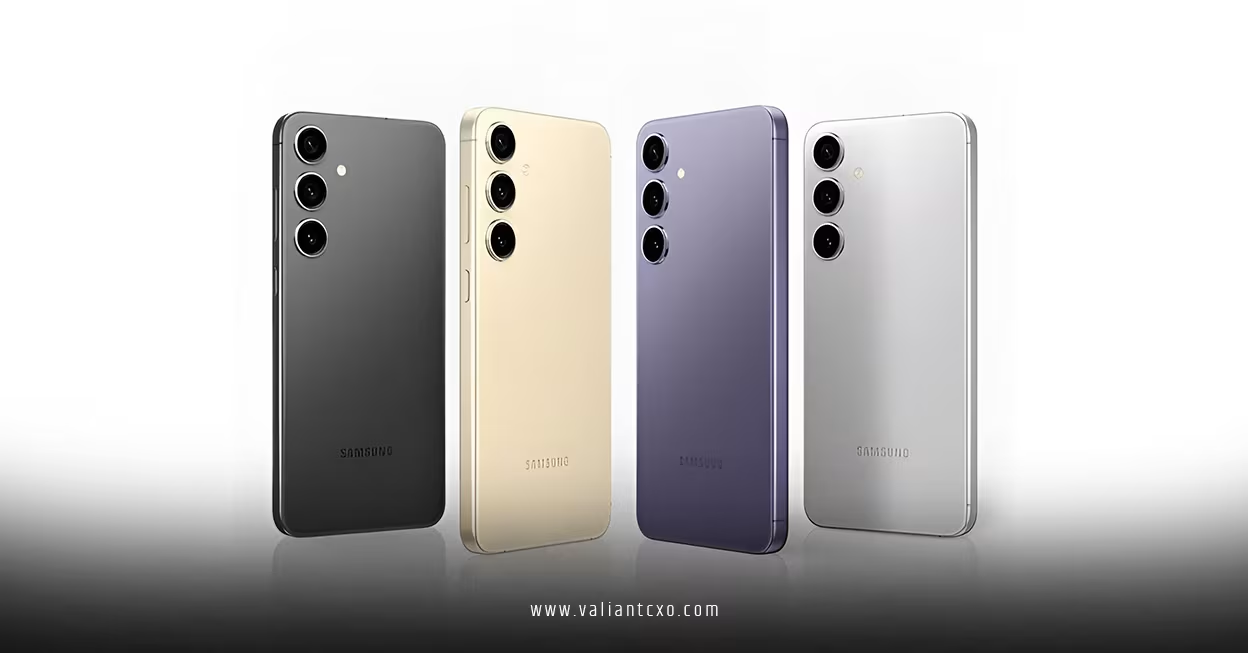
Samsung Galaxy S24 battery optimization tips matter when you need your phone to last through a full workday, a long commute, or back-to-back calls. If your battery drops faster than you expected, we’re going to look at the simplest settings and habits that can help you stretch every charge a little further.
Pic – CC0 License
Start with the biggest battery drains
Samsung Galaxy S24 battery optimization tips work best when you target the features that use the most power first. The display is usually the biggest drain, especially if you keep brightness high or leave the screen on for too long. Lowering brightness, shortening screen timeout, and turning off Always On Display when you do not need it can make a real difference.[3][6]
The next place to look is motion and screen resolution. If your model supports it, switching motion smoothness from Adaptive to Standard and dropping resolution from QHD+ to FHD+ on higher-end models can help battery life.[3][6] These changes are easy to reverse if you want more smoothness later, so you can test them without much risk.
Samsung Galaxy S24 battery optimization tips for apps and background use
A lot of battery loss happens quietly in the background. Open Settings > Battery and check which apps are using the most power, then focus on the ones you rarely use but that still run often.[3][7]
Samsung also gives you tools to limit background activity. You can move unused apps into Sleeping apps or Deep sleeping apps, which keeps them from working so hard when you are not using them.[1][3][12] Samsung’s own support guidance also recommends using Optimize now in Battery and device care to check for high background battery use.[7]
If you want a practical test, remove or disable apps you do not need for a day or two and see whether the battery improves. Social media, navigation, fitness, and messaging apps often show up as steady background users.[3] That is one of the fastest ways to tell whether the problem is the phone itself or one app behaving badly.
Use the right performance settings
One of the easiest Samsung Galaxy S24 battery optimization tips is changing the performance profile. On the Galaxy S24, many users report better battery life when switching from Standard to Light performance mode, because it reduces extra strain on the phone.[1][5]
That does not mean you have to slow your phone down badly. For everyday tasks like email, calls, notes, and browsing, Light mode is often enough. If you only need extra speed for a short burst, you can switch back later.
Tidy up your connections
Wireless features can quietly eat into battery life, especially when signal is weak. If you are in a poor coverage area, your phone works harder to stay connected, and that raises power use. In those moments, turning on Airplane Mode and using Wi‑Fi calling where available can help.[1][9]
Bluetooth, GPS, and Wi‑Fi scanning also matter. If you do not need them, switch them off rather than leaving them running all day.[6][8][9] For many people, this is a small habit that adds up by evening.
If you want more background on Samsung’s own battery tools, the official Samsung battery optimization page is worth checking.[7] For Android power-management basics, Google’s developer guidance on battery best practices is also useful.Google’s Android battery documentation

Charge smarter, not harder
Battery health is not only about how fast the phone drains. It is also about how you charge it. Samsung and many Galaxy users now favor battery protection features, because they reduce long-term wear by avoiding constant full charges.[2][10]
You can also avoid letting the battery sit at very low levels for long periods. A steadier charging routine is usually better than repeatedly running the phone close to empty. If you travel often or spend long days outside the office, keeping a small charger handy is a simple win.
Keep an eye on updates and app behavior
Sometimes battery trouble starts after a software update, which is why many people search for Samsung Galaxy S24 battery optimization tips after a patch. If your battery suddenly gets worse after an update, give the phone a few days to settle, then check whether one app is misbehaving.[3]
Samsung users have also reported that hidden system apps and leftover services can affect battery use, especially after installs or major changes.[1] That is why it helps to review system apps, clear out unnecessary ones, and keep the phone updated with the latest fixes from Samsung.
If you are dealing with a more specific post-update issue, it helps to read about the related problem directly, such as Samsung Galaxy S24 battery drain after July update. That keeps your troubleshooting focused instead of guessing at random settings.
Build a battery routine that fits your day
The best battery habits are the ones you can keep. If you run a business, your phone is not just a device; it is your inbox, calendar, payment tool, and communication line. So the goal is not to cripple performance, but to remove waste.
A simple routine might look like this: lower brightness, use Light performance mode, keep unused apps in Deep sleep, turn off scanning when you do not need it, and check battery usage every few days.[1][3][6] That is usually enough to get a noticeable improvement without making the phone annoying to use.
We hope that you have found this article enlightening in some way. If you apply even a few of these Samsung Galaxy S24 battery optimization tips, you should get a better balance between battery life and everyday performance, and that can make your whole day run more smoothly.