PlayStation Plus Premium cloud streaming guide readers usually want one simple answer: can you play without a PS5, and how hard is it to set up? The short answer is yes, in supported regions, but only if you have the right subscription, the right device, and a stable internet connection.[1][2] If you are also comparing options like asobi remote play ps plus premium cloud streaming steam deck without ps5, this guide will help you understand where cloud streaming fits and where it does not.
PlayStation Plus Premium cloud streaming guide basics
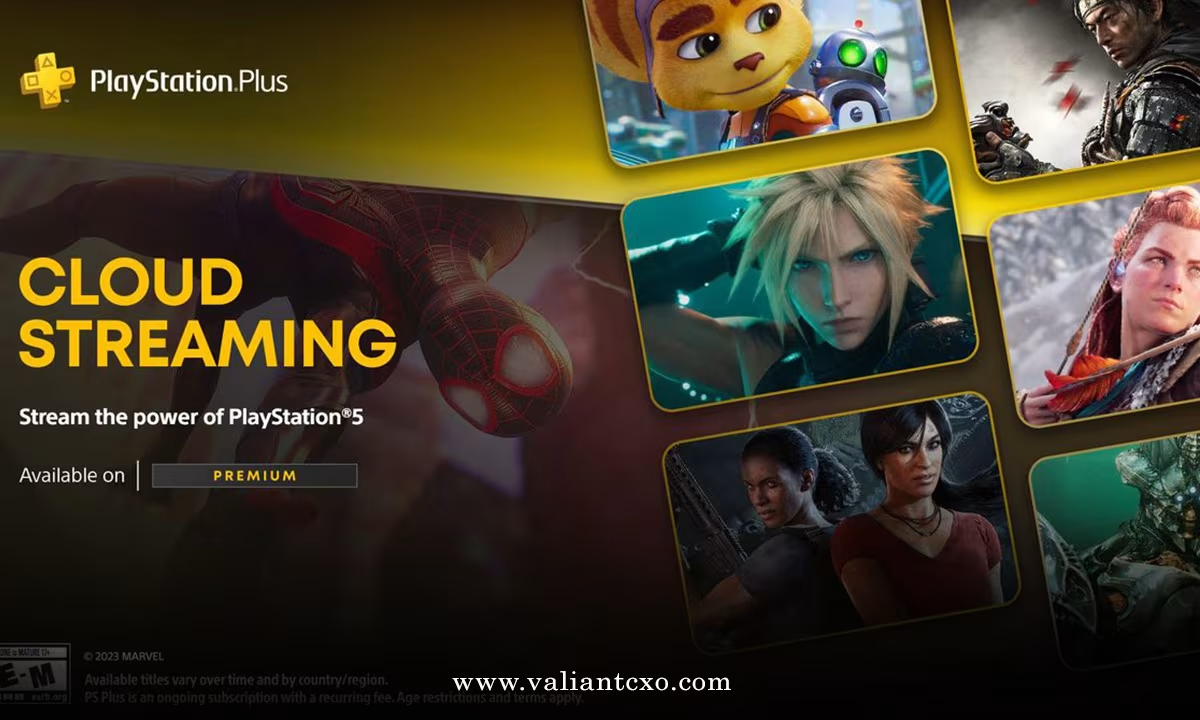
Cloud streaming means the game runs on Sony’s servers and the video is sent to your screen, rather than being downloaded and run locally on your device.[4] That is why PlayStation Plus Premium is the key requirement: cloud streaming is a Premium-only feature.[1][2]
This matters because it is not the same thing as Remote Play. Remote Play is built around a PS5 or another compatible console, while cloud streaming is the route that can work without owning a PS5, depending on where you live and what you want to play.[8][11]
What you need before you start
To use cloud streaming, you need an active PlayStation Plus Premium membership and a supported country or region.[1][2] Sony’s support pages also make clear that you need a stable internet connection, since the game is being streamed live to your device.[1][2]
You also need to be signed in with the correct PlayStation Network account. In practice, that means the account holding Premium is the one that must be used for streaming access.[1][3] If you are trying to do this on a handheld device, your experience will depend a lot on browser support, login flow, and connection quality.
How the setup works in plain English
On supported devices, the process is simple once your account is ready. You sign in, find a streamable game, and launch it through the cloud streaming option.[2][4] Sony’s own guidance shows that eligible PS5 games can be streamed directly from the service where the feature is available.[2][11]
The exact steps can vary by device, but the pattern is the same:
- Open your PlayStation Plus Premium account
- Check that cloud streaming is available in your region
- Choose a supported game
- Start the stream and wait for the session to load
That is why many users think of cloud streaming as a “no console needed” path. It is not a universal shortcut, but it is the cleanest way to access select PlayStation games without buying a PS5 first.[11][13]
Supported regions and game limits
This is where many people get tripped up. Cloud streaming is not available everywhere, and access depends on Sony’s supported-country rollout.[2][4] That means the service may work in one market and be unavailable in another, even if the subscription tier is the same.
The library also matters. Sony has been clear that cloud streaming is limited to selected titles, not the full PlayStation catalog.[2][8] In other words, you should check the specific game before assuming it will stream.
How this compares with Remote Play and Steam Deck use
If your real goal is to play on a handheld like a Steam Deck, cloud streaming is the concept to understand first. Remote Play is tied to a console you already own, while cloud streaming is the option that can let you skip the PS5 entirely.[8][11]
That is why searches around asobi remote play ps plus premium cloud streaming steam deck without ps5 usually lead to the same practical answer: if you do not own a PS5, focus on cloud streaming, not Remote Play. The Steam Deck can be a useful front end, but it is not what unlocks the service. Your subscription and region do the heavy lifting.
What a good experience looks like
A good cloud streaming session feels simple. You open the game, it loads quickly, and the connection stays stable enough that you stop thinking about the setup. That is the ideal.
A bad session usually comes from one of three things:
- weak Wi‑Fi or unstable broadband
- an unsupported region
- a game that is not included for streaming
Sony’s own support and launch materials point to Premium access and broadband quality as the main requirements, with supported content layered on top.[1][2][11] So if something is not working, start with those three checks before you blame the device.
A simple decision rule for buyers
If you already own a PS5, Remote Play and cloud streaming are two different tools, and they solve different problems.[8] If you do not own a PS5, then PlayStation Plus Premium cloud streaming is the path worth testing first.[1][2]
That is the simplest way to make the call:
- Want access without buying a console first? Look at cloud streaming.
- Want to stream from your own PS5? Use Remote Play.
- Want to play on a Steam Deck? Check whether your region, subscription, and chosen game all line up.
For an entrepreneur or business owner, the lesson is familiar: choose the setup that removes friction, not the one that only looks flexible on paper.
We hope that you have found this article enlightening in some way, and that you now have a clearer picture of how PlayStation Plus Premium cloud streaming actually works. If you are planning your next step, start by checking your region, confirming your Premium subscription, and testing one supported game before building a bigger setup around it.