how to connect Firestick remote to TV, you’re not alone—I’ve been there, fumbling with buttons like a kid lost in a candy store, wondering why my binge-watch dreams are on hold. But here’s the good news: it’s simpler than untangling Christmas lights after the holidays. In this guide, I’ll walk you through every twist and turn, from the basics to the brain-teasers, so you can kick back with Netflix or Prime Video without the drama. Let’s dive in and get that remote synced up, shall we?
Picture this: Your TV’s humming along, the Firestick’s glowing in its HDMI port, but the remote? It’s ghosting you harder than a bad first date. Why does this happen? Well, Firestick remotes pair via Bluetooth to the device itself—not directly to the TV, though it feels that way when you’re commanding volume or power with a flick of the wrist. A quick reconnect, and suddenly, you’re the director of your own living room theater. I’ve helped friends through this exact headache, and trust me, once you nail how to connect Firestick remote to TV, it’ll feel like magic. Stick with me; we’ll cover the essentials, troubleshoot like pros, and even throw in some pro tips to make your setup bulletproof.
Understanding the Basics: What Does “How to Connect Firestick Remote to TV” Really Mean?
Before we jump into the nuts and bolts, let’s clear the air. When folks search for how to connect Firestick remote to TV, they’re often picturing a seamless handoff where the remote bosses around both the streaming stick and the screen. In reality, the remote chats with the Firestick over Bluetooth, and the Firestick tells the TV what to do via HDMI-CEC (that’s the tech wizardry that lets devices talk without extra cables). It’s like a well-rehearsed dance: the remote leads, the Firestick follows, and the TV grooves along.
Why bother demystifying this? Because half the frustration comes from mismatched expectations. I remember my first Firestick setup— I thought the remote needed its own HDMI hookup, like some sci-fi gadget. Nope! Just batteries, a press, and patience. If your TV supports HDMI-CEC (most modern ones do, from Samsung to LG), you’ll control power and volume effortlessly once paired. No CEC? No sweat; we’ll touch on workarounds later. This foundation sets you up for success, turning “argh!” into “aha!” faster than you can say “popcorn time.”
Diving deeper, consider the remote’s evolution. Early Firesticks had IR remotes that needed line-of-sight, like waving at a grumpy butler. Now? Bluetooth freedom means you can lounge on the couch, remote buried in cushions, and still navigate. But even Bluetooth buddies need occasional reunions. Factors like low batteries, interference from Wi-Fi routers, or a firmware glitch can break the bond. That’s where our step-by-step magic comes in—tailored for newbies who want zero tech jargon overload.
Prerequisites for Success: Gearing Up Before You Learn How to Connect Firestick Remote to TV
Okay, hotshot, before we tackle how to connect Firestick remote to TV, let’s stock your toolkit. Think of this as prepping for a road trip: you wouldn’t hit the gas without gas in the tank or a map on the dash. Skipping these? You’re inviting detours that’ll have you circling back frustrated.
Essential Gear Check: What You’ll Need
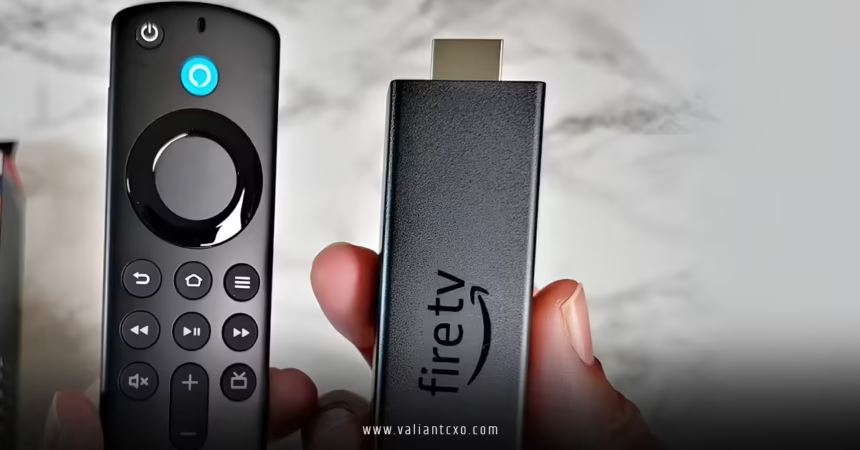
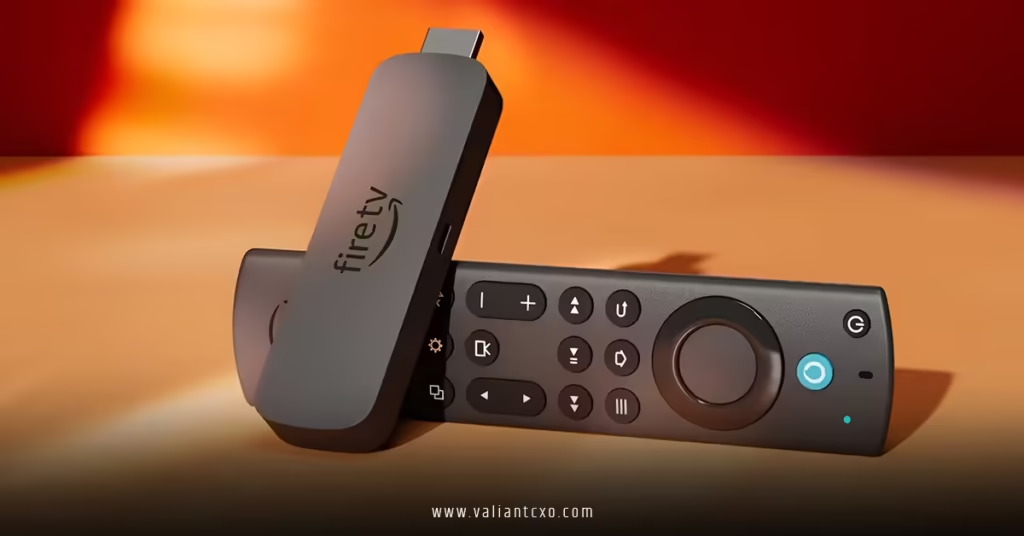
First off, grab your Firestick remote— the sleek black wand with voice search smarts. Ensure it’s got fresh AAA batteries; dead ones are the number one remote rebel. Your Firestick should be snug in the TV’s HDMI port, powered up via its adapter (wall outlet or USB, depending on your model). TV on? Check. And hey, a steady internet connection? Vital, because the Firestick might need a quick software nudge during pairing.
Pro tip from my endless trial-and-error sessions: Test your HDMI cable. A loose one can make the whole setup flaky, like a wobbly table ruining dinner. Swap it if it’s over five years old—trust me, it’s cheaper than calling a tech wizard.
TV Compatibility: Does Yours Play Nice When You Try to Connect Firestick Remote to TV?
Not all TVs are created equal, right? If yours is a smarty-pants from 2015 onward, you’re golden—HDMI-CEC (branded as Anynet+ on Samsung or Simplink on LG) lets the remote puppeteer volume and power. To confirm, rifle through your TV settings: Menu > System > HDMI-CEC, and flip it on. No CEC? Your remote will still rule the Firestick menus, but TV controls might need a separate zapper. I’ve jury-rigged older sets with IR blasters, but let’s not go there yet.
One more: Distance matters. Keep the remote within 10 feet of the Firestick during pairing—Bluetooth’s got range, but walls and microwaves are party poopers. Clear the coffee table of metallic clutter; it’s like giving your signal a clear runway for takeoff.
With these ducks in a row, you’re primed. Feels empowering, doesn’t it? Like suiting up for battle, but the enemy is just a pesky unpaired button.
Step-by-Step Guide: Mastering How to Connect Firestick Remote to TV Like a Pro
Alright, the moment you’ve been scrolling for— the heart-pounding how to connect Firestick remote to TV playbook. We’ll break it into bites: initial setup for newbies and re-pairing for the “oops, it vanished” crew. Follow along; I’ll narrate like we’re side-by-side on the couch, remote in hand.
Initial Setup: How to Connect Firestick Remote to TV Right Out of the Box
Unboxing day! Your Firestick’s eager, remote’s shiny—let’s sync ’em.
- Power Up the Duo: Plug the Firestick into your TV’s HDMI port (use the included cable or a certified one). Connect the USB end to the power adapter, then into the wall. Boom—TV screen lights up with the Firestick logo. Grab the remote, pop in those batteries (align the + and – , folks—I’ve flipped ’em wrong more times than I care to admit).
- Follow the On-Screen Wizard: The Firestick greets you like an old pal. Select your language, Wi-Fi network (enter that password carefully—autocorrect’s a beast here). It’ll prompt for an Amazon account login. Heart racing yet?
- Remote Auto-Pair Magic: Here’s the beauty—no manual fuss for fresh setups. As you navigate with on-screen prompts, hold the remote close. Press the Home button (that house icon). The Firestick senses it via Bluetooth and pairs automatically. A “Remote Connected” pop-up? Victory dance time! If not, don’t panic; we’ll troubleshoot.
- Test the Waters: Voice search “Alexa, play The Office” or arrow through apps. Volume up/down should hush or hype your TV speakers if CEC’s enabled. Smooth as butter? You’re live.
This newbie flow takes under five minutes. I recall my sister’s first go—nerves jangled, but by episode two of her show, she was hooked. It’s that effortless.
Re-Pairing an Existing Remote: Quick Fix for When You Need to Reconnect Firestick Remote to TV
Lost connection mid-marathon? No reboot required for this how to connect Firestick remote to TV encore.
- Navigate to Settings Sans Remote? Use the App Hack: Stuck without a working remote? Download the Amazon Fire TV app on your phone (iOS or Android). It acts as a virtual remote—connect to the same Wi-Fi, select your Firestick, and voila, on-screen controls.
- Dive into Pairing Mode: On Firestick (via app or if remote’s semi-alive), hit Settings (gear icon) > Controllers & Bluetooth Devices > Amazon Fire TV Remotes > Add New Remote.
- Wake the Remote: Press and hold the Home button for 10 seconds. Lights blinking? It’s flirting back. The Firestick chimes “Pairing Successful” or shows a checkmark. Release, and test.
- Seal the Deal: Restart the Firestick (Settings > My Fire TV > Restart) for good measure. Now, channel surf like a boss.
If it’s a voice remote (the Alexa kind), say “Alexa, pair remote” during step 3—hands-free flair!
This re-pair zaps glitches faster than coffee on a Monday. I’ve saved date nights this way; nothing kills romance like remote roulette.
Troubleshooting Nightmares: What If You Can’t Figure Out How to Connect Firestick Remote to TV?
Ugh, the plot twist nobody wants: steps followed, but crickets. Fear not—troubleshooting how to connect Firestick remote to TV is like detective work, and I’m your gumshoe sidekick. Let’s sleuth common culprits.
Battery Blues and Basic Resets
Dead batteries top the suspect list. Swap ’em—cheap fix, instant gratification. Still nada? Unplug Firestick from power and HDMI, wait 60 seconds (count ’em; it’s longer than it feels), replug. This “soft reset” clears gremlins without data loss.
Remote-specific reset: For newer models, hold Left, Menu, and Back buttons for 10 seconds. Older ones? Rewind and Right for three. Lights flash? It’s reborn.
Interference and Range Woes
Bluetooth’s picky—Wi-Fi routers, cordless phones, or even fluorescent lights can jam signals. Move the Firestick away from suspects. Range check: Within 10 feet, no barriers. I’ve relocated mine from behind the TV to the shelf; world of difference.
Firmware Fiascos: Updating to Smooth How to Connect Firestick Remote to TV
Outdated software? Sneaky saboteur. Via app or partial remote, go Settings > My Fire TV > About > Check for Updates. Install, restart. Amazon pushes these quietly; it’s like a stealth upgrade for your streaming soul.
If all else fails, factory reset (Settings > My Fire TV > Reset to Factory Defaults)—nuclear, but effective. Back up apps first; it’s a clean slate.
One wild card: Third-party remotes. Universal ones pair via the same menu, but hunt codes online. For official deets, check Amazon’s support hub— they’ve got your back.
These fixes have bailed me out of more “tech tantrums” than I can count. Patience pays; most issues bow out in under 10 minutes.
Pro Tips and Enhancements: Elevating Your Game After You Master How to Connect Firestick Remote to TV
Paired and purring? Level up! How to connect Firestick remote to TV is step one; here’s the encore for cord-cutters craving control.
Customizing Controls for Effortless Vibes
Tweak button shortcuts: Settings > Equipment Control > Manage Equipment. Program TV codes for power/volume—it’s like training a puppy to fetch your fave channel. Voice commands shine here: “Alexa, turn on the TV” feels futuristic.
Battery saver? Enable auto-sleep in remote settings. And for multi-room setups, pair multiple remotes—one per couch warrior.
Integrating with Smart Home: Beyond Basic Connection
Got Echo dots or smart lights? Link via Alexa app for “Alexa, dim lights and start movie night.” It’s ecosystem synergy, turning your setup into a Bond lair.
Security nudge: Change Wi-Fi if shared; nosy neighbors hate fun.
These tweaks transform “good enough” into “gosh, that’s slick.” I’ve turned skeptics into superfans with this polish.
When All Else Fails: Alternatives to Traditional Ways of How to Connect Firestick Remote to TV
Remote AWOL forever? Or hate buttons? Options abound.
- Fire TV App as Lifesaver: Phone mirroring—full navigation, keyboard for searches. Battery drain? It’s a temp gig.
- Universal Remotes: Logitech Harmony or SofaBaton sync via IR/Bluetooth. Pricey, but versatile for AV hoarders.
- Voice-Only Mode: Rely on Alexa—hands-free for the win, especially if mobility’s a factor.
Worst case? Amazon support chat—free, fast, human.
These backups keep streaming alive, no matter the hitch.
Wrapping It Up: You’ve Conquered How to Connect Firestick Remote to TV—Now Binge On!
There you have it, friend—your roadmap to how to connect Firestick remote to TV, from unboxing jitters to troubleshooting triumphs. We covered prerequisites, pixel-perfect steps, pesky fixes, and flair touches, all wrapped in beginner bliss. Remember, tech’s a tool, not a tyrant; a little nudge, and it’s your ally. Now, fire up that Firestick, pair that remote, and lose yourself in stories that spark joy. What’s your first watch? Hit play—you’ve earned it. If glitches linger, revisit a section; mastery comes with reps. Happy streaming!
Frequently Asked Questions (FAQs)
Why won’t my Firestick remote pair during initial setup when trying to learn how to connect Firestick remote to TV?
Often, it’s batteries or distance—keep it close, swap cells, and retry the Home button hold. If Wi-Fi’s spotty, that stalls too; stabilize your connection first.
Can I use a different remote while figuring out how to connect Firestick remote to TV?
Absolutely! The Fire TV app on your smartphone steps in seamlessly, letting you navigate until the real deal syncs up.
How long does it take to complete how to connect Firestick remote to TV on an older model?
Under 10 minutes usually, but factor in updates—grab coffee while it brews.
Does HDMI-CEC affect how to connect Firestick remote to TV?
It enhances post-pairing control (like volume), but pairing itself is Firestick-focused. Enable it for the full ride.
What if I have multiple Firesticks—how do I connect Firestick remote to TV for each?
Pair per device via the settings menu; label remotes with tape to avoid mix-ups in a multi-TV home.
Read More:valiantcxo.com