Steam Input Guide Mastery separates casual players from those who actually feel in control. This powerful system lets you remap, tweak, and completely reinvent how any controller—or even keyboard and mouse—behaves inside your Steam library. Whether you’re coming from the new Valve Steam Controller or using an Xbox, DualSense, or third-party pad, mastering Steam Input eliminates frustration and unlocks smoother gameplay.
Done right, it fixes latency quirks, customizes deadzones, layers gyro aiming, and creates button combinations that feel like cheating (in the best way). Here’s exactly how to get there.
Why Steam Input Guide Mastery Matters in 2026
Steam Input isn’t just button swapping. It’s a full input remapping and emulation layer that works across thousands of games, even those without native controller support.
- Create hybrid controls (sticks + gyro + trackpads)
- Fix poor default deadzones and sensitivity curves
- Add community templates in seconds
- Reduce perceived latency through smarter response curves
- Use one controller configuration across your entire library
The kicker? Most people never go beyond basic button mapping. That’s where the real advantage hides.
Steam Input Basics: Quick Start for Beginners
- Launch Steam in Big Picture Mode – Best interface for controller work.
- Connect your controller – Wired, Bluetooth, or the dedicated puck on the Valve Steam Controller.
- Right-click your game → Properties → Controller → Enable Steam Input.
- Open the Steam Input configurator from the overlay (default: Shift+Tab or Guide button + X).
Spend your first 10 minutes here. Don’t overthink it yet.
Core Steam Input Features You Must Master
Action Layers & Sets
Action layers let you hold a button (like a grip or bumper) to temporarily change the entire control scheme. Perfect for switching between aiming and movement modes.
Gyro Controls
The hidden superstar. Enable gyro aiming on the right stick click or a dedicated button. Combine with low sensitivity sticks for buttery precision. Many pros now use gyro as primary aiming in shooters.
Response Curves & Deadzones
Default deadzones are often too loose. Tighten them. Switch to radial or aggressive curves for faster response. This directly improves how responsive your controller feels, especially when paired with low-latency hardware.
Trackpad Magic (Valve Steam Controller users)
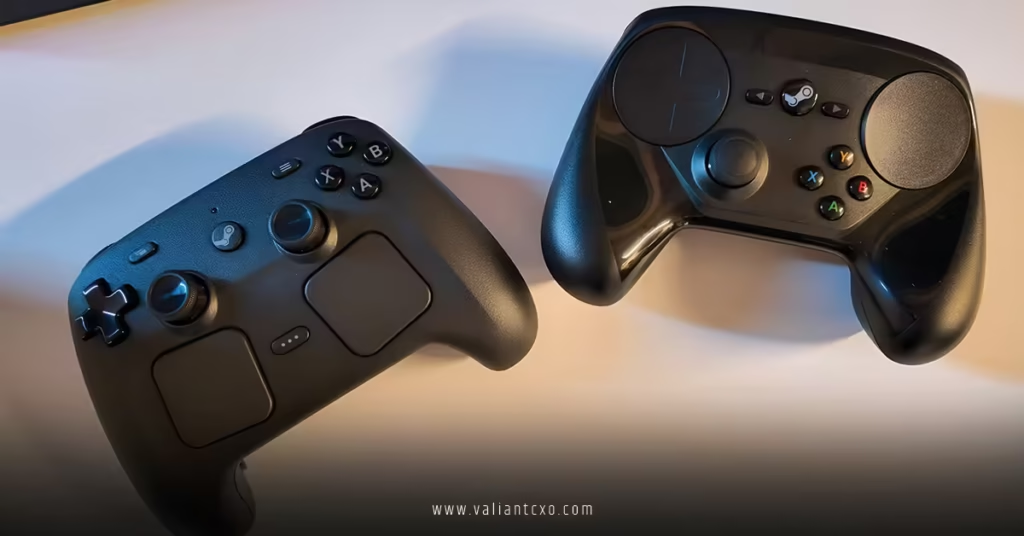
Map trackpads to mouse input, radial menus, or scrolling. The new TMR sticks handle analog movement while trackpads handle precision tasks.
Community Layouts
Never start from scratch. Search community configurations sorted by “Most Popular” or “Highest Rated.” One click applies a proven setup from players who sunk hundreds of hours.
Advanced Steam Input Guide Mastery Techniques
Want to go pro level?
- Chorded Presses: One button does different things based on what you hold simultaneously.
- Mode Shifting: Switch entire layouts on the fly (FPS mode vs driving mode).
- Anti-Deadzone Compensation: Counteract game engine issues.
- Touch Menus: Create radial wheels for quick item selection.
- Export & Backup: Save your masterpiece configs locally.
Pro move: Create a base “Universal” layout, then layer game-specific overrides. This saves hours when jumping between genres.
Steam Input vs Native Support: When to Use What
| Scenario | Use Steam Input? | Why |
|---|---|---|
| Modern AAA with good support | Optional | For gyro or custom curves |
| Older games / emulators | Yes | Essential for controller support |
| Valve Steam Controller | Strongly recommended | Full trackpad + gyro power |
| Competitive multiplayer | Yes | Fine-tune latency feel |
| Couch co-op | Yes | Shared easy layouts |
Common Steam Input Mistakes & Fixes
- Overcomplicating early: Start simple. Master sticks + gyro before building 5-layer monsters.
- Ignoring firmware: Update your controller (especially Valve Steam Controller) before tweaking.
- Conflicting mappings: Disable native game controller support if Steam Input feels off.
- Forgetting to test in-game: Always verify in actual gameplay, not just the configurator.
- Not saving versions: Name your layouts clearly (e.g., “Apex – Gyro Primary v2”).
Fix these and your control quality jumps dramatically.
Linking Hardware Performance to Input Mastery
Your tweaks only shine when the hardware delivers. That’s why understanding Valve Steam Controller latency benchmarks battery life makes a massive difference. Low 21ms wireless latency plus marathon battery life gives you the clean foundation needed for advanced Steam Input configurations to actually feel responsive instead of fighting the connection.
Quick Optimization Checklist
- Tighten outer deadzone to 0.95–1.0
- Enable gyro with 2–4x sensitivity multiplier
- Use “Always On” for haptics on important actions
- Test at 250Hz polling where available
- Create one “Quick Calibrate” layout for new games
Key Takeaways for Steam Input Guide Mastery
- Steam Input turns good controllers into great ones and great ones into extensions of your hands.
- Gyro + response curves deliver the biggest immediate improvement.
- Community layouts accelerate learning—don’t reinvent the wheel.
- Action layers unlock creativity without complexity.
- Always combine strong hardware (low latency, solid battery) with smart software tuning.
- Regular backups and version naming prevent disasters.
- Practice in single-player before ranked matches.
- Revisit your configs every few months as you improve.
Master this system once and every controller you own gets better. Your movement becomes intentional. Your aiming sharpens. Games you previously bounced off suddenly click.
Start with one game today. Spend 20 focused minutes in the configurator. You’ll feel the difference immediately.
FAQs
How long does it take to achieve Steam Input Guide Mastery?
Most players see big improvements in 1–2 hours. True mastery comes after tweaking 5–10 games and learning what your hands prefer.
Can Steam Input reduce perceived latency on any controller?
Yes. Smart response curves and proper deadzone tuning make inputs feel snappier even if raw hardware latency stays the same.
Is Steam Input worth mastering if I only use the Valve Steam Controller?
Absolutely. The controller’s trackpads, gyro, and low latency pair perfectly with Steam Input’s advanced features for unmatched versatility.