
iOS Screen Time setup guide tools give you a clear dashboard for how you and your kids use iPhone and iPad—and the power to set limits that actually stick. If you’ve ever wondered “How long has my kid been on YouTube today, really?”, this is where you get honest answers and real control.
This walkthrough keeps things simple, actionable, and parent-friendly, while still going deep enough for power users who want tight digital boundaries at home.
Quick Overview: What Screen Time Does (And Why You Should Care)
Before diving into the iOS Screen Time setup guide step-by-step, let’s get on the same page.
Screen Time lets you:
- Track how much time is spent on apps, websites, and categories (like social, games, or productivity).
- Set daily time limits for specific apps or categories.
- Create Downtime windows when only essential apps work.
- Restrict content, purchases, and privacy settings for kids.
- Manage all of this remotely from your own iPhone or iPad using Family Sharing.
When you combine Screen Time with features like Apple iOS 27 new child safety features Ask to Browse parental controls, you get a serious safety net for your kids’ online life, without hovering over their shoulder 24/7.
Step 1: Turn On Screen Time on Your Own Device
Start with yourself. It’s way easier to manage kids’ settings once you’re familiar with the basics.
- Open Settings on your iPhone or iPad.
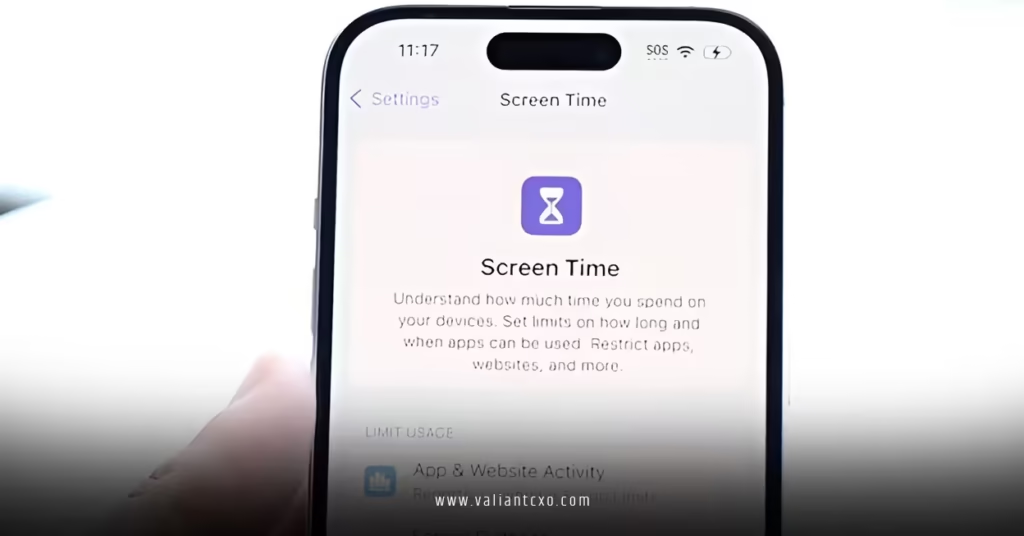
- Scroll down and tap Screen Time.
- Tap Turn On Screen Time.
- Choose This is My [Device] when prompted.
You’ll immediately see a summary of usage. Give it a day or two and you’ll start getting meaningful trends: which apps you use most, how often you pick up your phone, and what triggers those pickups.
If you want to hold yourself accountable too, you can add limits later—this guide focuses on family and kids first, but the same tools apply to adults.
Step 2: Set Up Family Sharing (Non-Negotiable for Kids)
If you want to manage Screen Time for your kids, Family Sharing is the backbone.
- Open Settings.
- Tap your Apple ID name at the top.
- Tap Family (or Family Sharing).
- If you haven’t set it up:
- Follow the prompts to create a family group.
- To add a child:
- Tap Add Child.
- Create a child Apple ID using their real date of birth.
- This matters because iOS will apply age-appropriate defaults.
Once your child is in your family group, you can manage their Screen Time from your own device without ever touching their phone.
Step 3: Turn On Screen Time for a Child
Now the real iOS Screen Time setup guide work begins—configuring a kid’s device.
- On your iPhone, go to Settings > Screen Time.
- Under Family, tap your child’s name.
- Tap Turn On Screen Time.
- Choose This is My Child’s [Device].
- Follow the setup prompts, which usually include:
- Downtime
- App Limits
- Content & Privacy Restrictions
At the end of the flow, you’ll be asked to set a Screen Time Passcode.
Make this different from your device passcode, and do not share it with your child.
Step 4: Configure Downtime (Tech “Curfew”)
Downtime is your digital lights-out. Only apps you explicitly allow will work during these hours.
To set Downtime:
- Go to Settings > Screen Time > [Child’s Name].
- Tap Downtime.
- Turn on Scheduled.
- Choose start and end times—common setups:
- Weeknights: 8:30 PM – 7:00 AM
- Weekends: 10:00 PM – 8:00 AM
You can customize days if you want lighter rules on weekends.
During Downtime, calls and allowed apps still work (you control which ones). You might allow:
- Phone
- Messages (for family only, if combined with contact restrictions)
- Calendar, Notes, Health, or similar essentials
Everything else? Grayed out until morning.
Step 5: Add App Limits by Category
App Limits are where you put a cap on the time sinkers: social media, games, video, etc.
- In your child’s Screen Time panel, tap App Limits.
- Tap Add Limit.
- Select categories like:
- Social (e.g., Instagram, Snapchat)
- Games
- Entertainment (e.g., YouTube, streaming)
- Tap Next.
- Set a daily time limit (you can set different limits by day if needed).
A solid starting point many families use:
- Social: 1 hour per day
- Games: 45–60 minutes per day
- Entertainment: 1–1.5 hours per day
You can be stricter for younger kids and more flexible for teens, as long as you’re clear about expectations.
When time’s up, the app shows a Screen Time screen. Your child can request more time—you can approve from your own device on a case-by-case basis.
Step 6: Lock In Content & Privacy Restrictions
This is where you control what your child can see and do, not just how long.
- Go to Settings > Screen Time > [Child’s Name].
- Tap Content & Privacy Restrictions.
- Turn it On.
Now work through the key sections.
iTunes & App Store Purchases
- Installing Apps: Set to Don’t Allow for younger kids, or allow with Ask to Buy enabled in Family Sharing.
- Deleting Apps: You can allow or restrict depending on their age.
- In-app Purchases: Usually Don’t Allow for kids to avoid surprise charges.
Allowed Apps
Choose which built-in apps your child can use at all—things like Safari, FaceTime, Camera, etc.
If you’re using Apple iOS 27 new child safety features Ask to Browse parental controls, you’ll typically keep Safari allowed but tightly filtered.
Content Restrictions
This is where the web and media settings live:
- Web Content:
- Limit Adult Websites for most kids.
- Allowed Websites Only for younger children where you whitelist sites.
- Music, Podcasts & News:
- Disable Explicit.
- Movies and TV Shows:
- Set ratings appropriate for your child’s age (e.g., PG or PG-13).
- Apps:
- Set an age rating (e.g., 9+, 12+, 17+).
These are your “guardrails” before Ask to Browse even comes into play.
Step 7: Use Screen Time with Ask to Browse for Smarter Safety
Screen Time is powerful on its own, but it shines when combined with newer tools like Apple iOS 27 new child safety features Ask to Browse parental controls.
In practice:
- Screen Time manages when and how long.
- Ask to Browse manages where your child can go on the web.
If a site is blocked by content filters, your child can request access. You get a notification and can approve once or always, or block it permanently. Over time, this builds a curated set of sites that match your family’s values and your child’s maturity.
For many families, that combo beats the old “all or nothing” approach to internet access.
Step 8: Review Screen Time Reports Regularly
Data without review is just noise. To keep things working:
- Open Settings > Screen Time.
- Tap your child’s name.
- Tap See All Activity.
You’ll see:
- Daily and weekly usage
- Most-used apps
- Pickup counts
- Notifications per app
Every week or two, glance through:
- Are there apps eating way more time than you expected?
- Are late-night pickups spiking even with Downtime set?
- Is schoolwork getting done before entertainment, or the other way around?
This isn’t about spying. It’s about adjusting rules based on actual behavior, not guesses.
Advanced Tips for Power Users
Once you’ve nailed the basics of this iOS Screen Time setup guide, there are a few more tricks worth considering.
Combine App Limits with Communication Limits
For kids with phone or messaging access:
- Use Communication Limits (under Screen Time) to control who they can contact during allowed time and Downtime.
- You might allow:
- Family + trusted contacts during Downtime
- Broader contacts during the day
This helps reduce late-night group chats or random calls while still keeping them reachable in an emergency.
Different Rules for Weekdays vs Weekends
Inside App Limits and Downtime, you can customize days:
- School nights: stricter Downtime and shorter app limits.
- Weekends: slightly more screen time with guardrails.
This mirrors how most families already operate and feels less arbitrary to kids.
Keep Your Passcode Secret
Sounds obvious, but here’s what usually happens:
A parent types the Screen Time passcode in front of their kid… once. A week later, limits “mysteriously” stop working.
- Type the passcode discreetly.
- Change it if you suspect your child has figured it out.
- Don’t reuse your device passcode as the Screen Time passcode.
Common Mistakes When Setting Up Screen Time (And How to Fix Them)
Everyone stumbles here. The good news: most issues are easy to repair.
Mistake 1: Setting Limits Without Talking About Them
If limits appear out of nowhere, kids treat them like a punishment, not a boundary.
Fix:
Explain the “why” behind the rules. For example:
- “We’re doing 1 hour of games so there’s room for homework and offline fun.”
- “Downtime starts at 9 PM so your brain can wind down before bed.”
Mistake 2: Over-blocking Teens
Locking down a 16-year-old like a 9-year-old usually backfires. They’ll just move to friends’ devices or school computers.
Fix:
Use Screen Time as a negotiation tool:
- More trust and responsibility → slightly looser limits.
- Repeated problems or broken agreements → tighter rules for a period.
Mistake 3: One Giant Category Limit for Everything
Putting an all-in-one limit on “All Apps & Categories” can cause friction fast.
Fix:
Be more surgical:
- Separate Games, Social, and Entertainment.
- Keep Messages and educational apps more available, even if you squeeze down time-wasters.
Mistake 4: Ignoring Screen Time Notifications
If you never respond to time extension requests, kids start seeing Screen Time as broken or pointless.
Fix:
- Decide in advance what’s usually okay to extend (e.g., homework apps, reading).
- Quickly deny or approve requests so the system feels consistent.
Mistake 5: Not Pairing Screen Time with Web Safety
Time limits alone don’t stop inappropriate content. If Safari and web access aren’t configured, kids can still stumble into the wrong corners of the internet.
Fix:
- Make sure Web Content settings under Content Restrictions are properly set.
- Use Apple iOS 27 new child safety features Ask to Browse parental controls so your child can request access to specific sites instead of being totally blocked or fully open.
Simple Screen Time Action Plan
If you want a quick “do this now” path:
- Set up Family Sharing and child Apple IDs with accurate ages.
- Enable Screen Time for each child and set a unique Screen Time passcode.
- Configure Downtime to match your family’s sleep schedule.
- Add App Limits for games, social, and entertainment.
- Turn on Content & Privacy Restrictions with age-appropriate settings.
- Pair Screen Time with Ask to Browse for safer web use.
- Review Screen Time reports weekly and adjust based on what you see.
- Have regular, honest conversations with your kids about how and why you’re using these tools.
Do that, and you’re far ahead of the average household.
Key Takeaways
- An iOS Screen Time setup guide isn’t just about limiting apps—it’s about creating healthy digital habits for your whole family.
- Family Sharing and proper child Apple IDs are essential if you want consistent, remote control of Screen Time on your kids’ devices.
- Downtime, App Limits, and Content & Privacy Restrictions work together to shape when, how long, and what your child can use.
- Combining Screen Time with Apple iOS 27 new child safety features Ask to Browse parental controls gives you both time-based control and smarter web safety.
- Regularly reviewing Screen Time reports helps you adjust rules based on real behavior instead of guessing.
- The most effective setups blend clear technical boundaries with open conversations—not sneaky surveillance or surprise lockdowns.
When Screen Time is set up thoughtfully, your devices stop running the house and start serving your family’s goals instead.
FAQ :
1. Is iOS Screen Time enough on its own to manage my child’s device use?
Screen Time is a strong foundation for managing time limits, app access, and basic content controls, and for many families it’s enough when paired with clear rules and conversations. If you want tighter web safety, combining Screen Time with Apple iOS 27 new child safety features Ask to Browse parental controls gives you more granular control over which sites your child can visit.
2. Can my child turn off Screen Time or change the settings?
Not if you’ve set it up correctly. As long as you use a unique Screen Time passcode that your child doesn’t know, they can’t disable limits, change Downtime, or edit app and content restrictions. If Screen Time suddenly stops working as expected, it usually means your passcode has been guessed and should be changed immediately.
3. How do Apple iOS 27 new child safety features Ask to Browse parental controls work with Screen Time?
Screen Time controls how long and when your child can use apps, while Ask to Browse controls where they can go on the web. When a site is blocked by content filters, your child sees an option to request access; you get a notification and can approve or deny it from your own device, building a customized, family-approved list of websites over time.