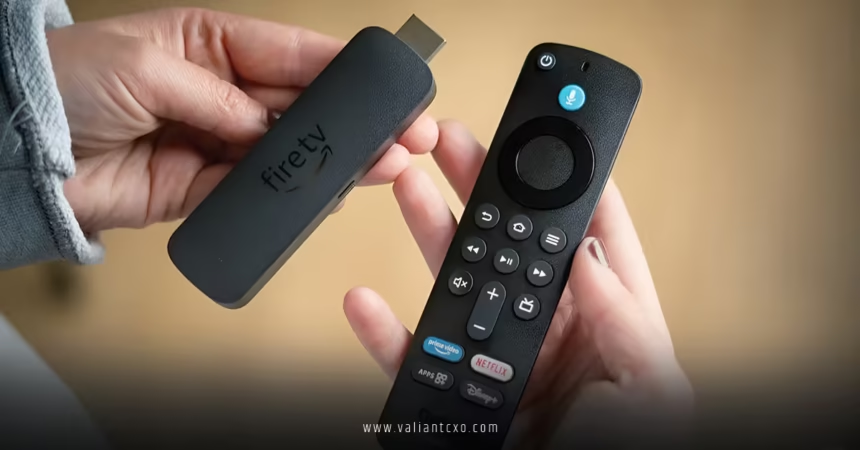
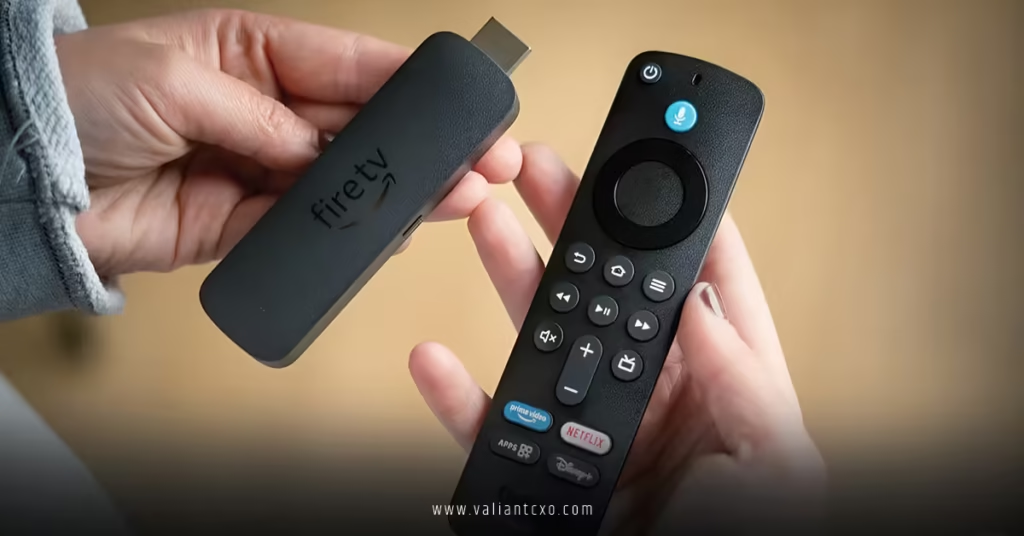
Amazon Fire TV Stick Vega OS no sideloading represents a significant shift in how Amazon controls app installation on their streaming devices. This new operating system effectively blocks users from installing third-party applications outside of Amazon’s official App Store, eliminating the popular practice of sideloading apps like Kodi, alternative streaming services, or custom launchers that many Fire TV users have relied on for years.
Quick Overview:
- Vega OS is Amazon’s restrictive new operating system that prevents sideloading
- Traditional methods like ADB debugging and APK installation are blocked
- Users lose access to thousands of third-party apps and customization options
- The change primarily affects power users who customize their streaming experience
- Alternative streaming devices may be necessary for unrestricted app access
What Is Amazon Fire TV Stick Vega OS?
Vega OS marks Amazon‘s most aggressive move yet to lock down their Fire TV ecosystem. Unlike previous Fire OS versions that allowed savvy users to enable developer options and install APK files, Vega OS implements system-level restrictions that make sideloading virtually impossible.
Think of it like this: if the old Fire OS was like owning a house where you could renovate as you pleased, Vega OS is like renting an apartment with a very strict landlord who controls every modification.
The operating system maintains the familiar Fire TV interface that most users know, but underneath the hood, Amazon has reinforced their walled garden approach. This means you’re limited to apps available in Amazon’s App Store—period.
How Vega OS Blocks Sideloading
Technical Restrictions
Amazon implemented several layers of protection in Vega OS:
- ADB Debugging Disabled: The Android Debug Bridge functionality that allowed app installation is completely removed
- Developer Options Locked: Users cannot access developer settings that previously enabled unknown source installations
- APK Installation Blocked: Direct installation of Android Package files is prevented at the system level
- USB Installation Prevented: External storage devices cannot be used to install applications
What This Means for Users
Here’s the reality check. Those YouTube tutorials showing how to install Kodi or Popcorn Time? They don’t work anymore. The workarounds that tech enthusiasts shared on Reddit forums? Obsolete.
Amazon essentially closed every backdoor that allowed unofficial app installation.
Why Amazon Made This Change
Amazon’s motivation isn’t mysterious. They want complete control over the content ecosystem on their devices. By preventing sideloading, Amazon ensures:
Revenue Protection: Every app installation goes through their store, where they collect fees from developers and maintain partnerships with approved streaming services.
Content Compliance: Amazon avoids legal issues with copyright holders who were concerned about piracy apps being easily installed on Fire TV devices.
User Experience Control: Amazon can guarantee that only tested, approved apps run on their devices, potentially reducing support requests and device performance issues.
The move aligns with Amazon’s broader strategy of creating a controlled entertainment ecosystem that drives Prime subscriptions and content purchases.
What You Can and Can’t Do with Vega OS
| Feature | Available | Restricted |
|---|---|---|
| Official App Store | ✅ Full Access | ❌ Limited Selection |
| Netflix, Disney+, HBO Max | ✅ Yes | ❌ No Sideloaded Versions |
| Kodi Media Center | ❌ Blocked | ❌ Cannot Install |
| Custom Launchers | ❌ Blocked | ❌ Cannot Install |
| Emulation Apps | ❌ Blocked | ❌ Cannot Install |
| Alternative Browsers | ❌ Limited Options | ❌ No Chrome/Firefox |
Step-by-Step: Checking If Your Device Has Vega OS
Before you panic about your current Fire TV Stick:
- Navigate to Settings from your Fire TV home screen
- Select “My Fire TV” or “Device Options”
- Choose “About” to view system information
- Look at the Fire OS Version: Vega OS typically shows as Fire OS 8.0 or higher
- Check Purchase Date: Devices sold after mid-2025 are more likely to have Vega OS
What to Look For:
- Fire OS 8.0+ usually indicates Vega OS
- Absence of “Developer Options” in settings menu
- “Unknown Sources” option completely missing
- ADB debugging options unavailable
Alternatives for Users Who Need Sideloading
Other Streaming Devices
If sideloading is crucial to your streaming setup, consider these alternatives:
NVIDIA Shield TV: Runs full Android TV and allows unrestricted app installation. It’s pricier but offers the most flexibility.
Xiaomi Mi Box S: Budget-friendly Android TV device that supports sideloading and offers good performance.
Roku Ultra: While it doesn’t support sideloading, it has the most comprehensive official app selection available.
Older Fire TV Devices
Here’s something Amazon probably doesn’t want you to know: older Fire TV Sticks and Fire TV Cubes running Fire OS 7.x or earlier still support sideloading. These devices are available on the secondary market, though Amazon may eventually force OS updates.
Pro tip: If you find an older Fire TV device, disable automatic updates immediately to prevent forced upgrades to Vega OS.
Common Mistakes When Dealing with Vega OS
Mistake 1: Believing Workaround Claims
The Problem: YouTube videos and blog posts claiming to bypass Vega OS restrictions. The Reality: These are typically outdated tutorials or clickbait content. The Fix: Verify information dates and check multiple sources before attempting any modifications.
Mistake 2: Factory Resetting to “Fix” Sideloading
The Problem: Some users think a factory reset will restore sideloading capabilities. The Reality: Factory resets won’t change the underlying OS restrictions. The Fix: Accept that Vega OS limitations are permanent, or consider alternative devices.
Mistake 3: Purchasing Jailbroken Fire TV Sticks
The Problem: Third-party sellers offering “jailbroken” Fire TV Sticks with Vega OS. The Reality: These devices either don’t have Vega OS (and will eventually update) or the seller is being dishonest. The Fix: Research the specific Fire OS version before purchasing any pre-modified devices.
Is Vega OS Right for You?
Choose Vega OS Fire TV Sticks if:
- You primarily use mainstream streaming services
- You prefer Amazon’s curated app experience
- You value device stability over customization
- You’re not tech-savvy and want simplicity
Avoid Vega OS Fire TV Sticks if:
- You regularly sideload apps
- You use Kodi for media management
- You enjoy customizing your streaming interface
- You need apps not available in Amazon’s App Store
The honest truth? Most casual users won’t notice the difference. But if you’re reading this article, you probably fall into the category of users who will miss sideloading capabilities.
Key Takeaways
- Amazon Fire TV Stick Vega OS completely eliminates sideloading capabilities through system-level restrictions
- Traditional methods like ADB debugging and APK installation no longer work on Vega OS devices
- Amazon implemented these changes to control content distribution and protect revenue streams
- Users who need sideloading should consider alternative streaming devices like NVIDIA Shield TV or older Fire TV models
- The change primarily affects power users and tech enthusiasts rather than casual streamers
- No legitimate workarounds exist to restore sideloading functionality on Vega OS
- Secondary market Fire TV devices with older operating systems still support sideloading
- The restriction is permanent and cannot be reversed through factory resets or software modifications
Looking Ahead
Amazon Fire TV Stick Vega OS no sideloading represents the company’s commitment to a controlled streaming ecosystem. While this frustrates users who enjoyed the flexibility of installing custom apps, it’s unlikely Amazon will reverse course.
For users who absolutely need sideloading capabilities, the writing is on the wall: it’s time to explore alternative streaming solutions. The good news? The streaming device market offers plenty of options that still embrace the open nature of Android TV.
Your next move? Honestly assess how much you actually use sideloaded apps. If they’re essential to your entertainment setup, start shopping for an NVIDIA Shield TV or similar Android TV device. If you rarely venture outside mainstream apps, Vega OS might not impact your viewing experience at all.
The streaming landscape keeps evolving, and sometimes that means leaving familiar devices behind.
Frequently Asked Questions
Q: Can I downgrade from Vega OS to an older Fire OS version that supports sideloading?
A: No, Amazon Fire TV Stick Vega OS no sideloading restrictions cannot be bypassed by downgrading. Amazon prevents OS downgrades through encrypted bootloaders and verification systems.
Q: Will Amazon ever add sideloading back to Fire TV devices?
A: Based on Amazon’s business model and recent actions, it’s highly unlikely they’ll restore sideloading capabilities to future Fire TV devices. The company is moving toward greater content control, not less.
Q: Are there any legal risks to using older Fire TV devices that still support sideloading?
A: Using older Fire TV devices for sideloading isn’t illegal, but installing piracy-focused apps could violate copyright laws. Always ensure you’re only installing legitimate applications you have the right to use.
Q: What’s the best alternative to Fire TV Stick for users who need sideloading?
A: The NVIDIA Shield TV offers the most robust sideloading experience with full Android TV capabilities, though it costs significantly more than a Fire TV Stick. For budget-conscious users, the Xiaomi Mi Box S provides good sideloading functionality.
Q: Can I prevent my current Fire TV Stick from updating to Vega OS?
A: You can disable automatic updates in settings, but Amazon may eventually force critical updates that include Vega OS. There’s no permanent way to prevent OS updates indefinitely.